Drawing & measuring
Annotate the map, edit feature geometry and take measurements with the tool rail's Add, Edit and Measure tools.
Drawing, editing and measuring all live in the tool rail along the bottom of the map: Pan, Add, Edit, Select and Measure. Pick a tool and its options open just above the rail; pick Pan (or click the active tool again) to get back to normal map navigation.
On a computer you can drag the rail by its grip to float it anywhere on the map (double-click the grip to dock it again), and Collapse map tools shrinks it to just the active tool.
Add
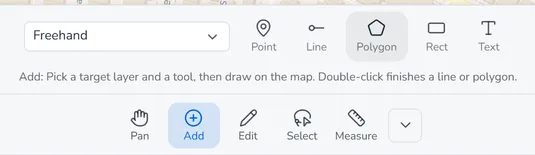
Pick Add, choose a target layer, then a tool: Point, Line, Polygon, Rect or Text. Click on the map to place points; double-click finishes a line or polygon.
- Drawing layers (such as the default Freehand layer) are for quick annotation and accept any shape, including Text — type your label before placing it.
- Data layers hold real features with attributes. Only the tools that match the layer’s geometry are available — you can’t draw a line into a point layer.
When you draw into a layer that doesn’t exist yet, pick + New drawing layer… or + New data layer… from the layer dropdown.
Freehand drawing layers
A drawing layer is a free-form sketch pad: one layer can hold points, lines, polygons, rectangles and text all together, so a whole plan — a meeting point, the way in, the area to cover — lives in a single layer you can show, hide or share.
Each shape is styled on its own. After you finish one, click Style in the edit panel to set its fill, outline or line colour (or, for text, its colour, size and halo), then Done.
Edit
Pick Edit and click any feature to edit its geometry (finishing a new shape drops you straight into this too). A panel opens with:
- Move, Vertex and Scale & rotate — drag the whole feature, reshape it point by point (click a midpoint to add a point, click a point to delete it), or transform it with box handles.
- Continue, Add part and Split — extend a line, make the feature multipart, or cut it with a line.
- Attributes and Photos — edit the feature’s fields and attachments.
- Done keeps your changes, Undo reverts to the original geometry, and Delete removes the feature.
For the full walkthrough, including editing attributes from a feature’s popup, see Editing features.
Draw settings & snapping
The settings gear at the right of the tool options sets the symbol style for each tool — fill, outline, size, and for text the font size, bold and halo. It also holds Snapping: turn it on, choose Vertex and/or Edge snapping, set a Tolerance in pixels, and tick which layers to snap to — so new geometry locks cleanly onto existing features. You can also style the selection highlight here.
Measure
Pick Measure in the tool rail, then a type:
- Distance — click along a path to measure length.
- Area — click a polygon to measure area.
- Coord — drop a point to read its coordinates.
- Existing — hover any existing feature to read its area, perimeter or length; click to stamp that measurement as a label.
- 3D — only shown while a 3D layer is visible. Click points on the model for the true 3D distance and height change; a single point gives its height. See 3D maps & layers.
The live result shows in the tool options while you measure. Change the distance and area units (metres, kilometres, feet, miles, hectares, acres and more) from the settings gear. Clear removes the measurements.
Measurements are true ground distances and areas on the Earth’s surface, not flat-map
approximations, so they stay accurate at any latitude. The same goes for the length_m, area_m2
and perimeter_m fields that DropMaps keeps on data layers.
Selecting features
Choosing features to act on lives under Select in the tool rail — picking a set, then deleting, moving, copying or tabling it. See Selecting features for the full walkthrough.
Next steps
- Selecting features — pick and act on sets of features.
- Working with layers — manage the layers you draw into.
- Styling layers — symbolise and label your features.