Maps & cloud sync
Organise your maps into folders, set a map's name, Home view, 3D and thumbnail, delete maps, back them up to the cloud and keep an eye on storage.
A DropMaps map is a saved collection of layers, styles and settings. You can keep many, and — on any plan, free included — back them up to the cloud and sync them across devices.
Your maps
Open the Menu ▸ Maps tab (or Open another map at the top of Map settings) to see all your maps in one grid — the ones on this device, the ones in the cloud and the ones shared with you.
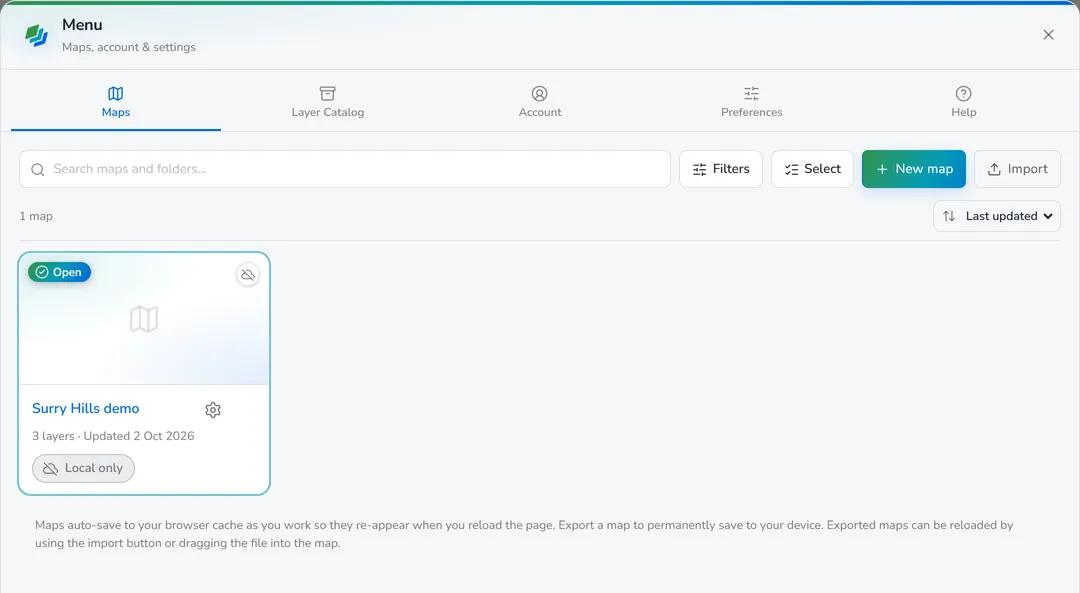
Each card shows the map’s thumbnail, its name, how many layers it has and when it was last updated, plus its one-line summary. A badge in the thumbnail’s corner says where the map lives:
- Local only — on this device, not backed up.
- Synced — on this device and kept in step with the cloud.
- Cloud only — saved from another device and not downloaded here yet. Open it to download it.
The map that’s currently open is marked Open. Click a card’s thumbnail or name to switch to it.
- New map — name it, add an optional description, and (if you’re signed in) choose whether to back it up to the cloud.
- Import — open an exported map file (a
.dmap) or drag one in. - Search, sort (Last updated, Name or Date created) and Filters — narrow the grid by Sync (synced, local only, cloud only), Sharing (has a share link or not) and Owner (mine or shared with me).
- The gear on a card opens that map’s Map settings, switching to it first if needed.
- The ⋯ menu has Rename (or double-click the name), Move to folder…, Export, Keep photos offline (synced maps — see Working offline) and Delete. See Delete a map.
- Select lets you tick several maps to Move to folder or Delete them in one go.
- Signed in, the refresh button checks the cloud for maps you’ve just saved on another device.
Folders
Maps are grouped by folder. Use ⋯ ▸ Move to folder… (or Select ▸ Move to folder) and type a new folder name or pick one you already use. Rename a folder from its header. Folders are stored with the map, so they follow it to your other devices.
Map settings
Map settings is where the open map itself is configured. Open it by clicking the map’s name at the top of the map, Settings in the left nav, or the gear on a map’s card. The top of the window shows the Current map with an Open another map button beside it. Like layer settings, it can float or dock beside the map; docked, a dropdown replaces the tabs. There are five tabs.
Details
- Map name, a one-line Summary (shown on its card) and a longer Description.
- Home view — where the Home button takes you and where shared links open. With none set, Home zooms to fit every layer. Frame the map and click Use current view to set it (then Update to current view or Clear later).
- Map & 3D — Globe projection, Hillshade (shaded relief) and 3D terrain. See 3D maps & layers.
- Thumbnail — the picture on the map’s card. Capture view snaps the map as it is now, or Upload… an image. Share links use it as their preview image unless a link sets its own branding.
- Delete map — see Delete a map.
Sharing — the map’s share links (see Sharing & the viewer). A map must be synced to the cloud before it can be shared; on a local-only map this tab offers to turn sync on.
Sync — the map’s cloud sync controls (below). On a map someone shared with you, backup is handled by the owner.
Offline — get the map ready to use with no connection: layers, basemap areas, photos and storage. See Working offline.
Export — Export map downloads a .dmap file with every layer, style, table and attachment,
which you can open in DropMaps on any device. Raster and tile layers keep their settings but not
their imagery.
Delete a map
Delete map… on the Details tab (or Delete on a map card’s ⋯ menu) asks how far to go when the map has a cloud copy:
- Delete from this device — removes the map and its layers here. The cloud copy is kept, so you can pull it back any time.
- Delete the map everywhere, keep the layers — removes the map here and in the cloud. Its layers stay in the cloud, ready to re-add from the Layer Catalog.
- Delete the map and layers everywhere — also deletes the layers from the cloud to free quota. Layers still used by another map are kept. This can’t be undone.
A map that isn’t backed up anywhere offers Export first, since deleting removes its only copy. Deleting a map someone shared with you only removes your copy. Deleting your last map starts a fresh empty one. Select in the Maps grid deletes several maps with the same choices.
Local-first, always
The editor works fully offline and without an account — every map and layer is cached in your browser and reappears after a reload, with nothing uploaded unless you choose to. Export a map any time to keep a safe copy you can re-import.
Local-only data lives in this browser on this device. If you clear browser data or switch devices it can be lost — so either export backups, or turn on cloud sync. Every account gets cloud storage (100 MB on Free), so sync isn’t something you have to pay for first.
Signed-in maps belong to your account: if someone else signs in on the same device they won’t see them, and they reappear when you sign back in.
Cloud sync
Cloud sync and backup are included on every plan — a free account has 100 MB of storage to sync into, Pro 5 GB and Team 10 GB. Once signed in:
- The cloud icon beside the map’s name shows its state — synced, syncing, queued, error or local only. Click it for details, or open Map settings ▸ Sync.
- Keep this map live in the cloud turns automatic sync on or off. Edits — features, symbology, layers, bookmarks — sync live across your signed-in devices and with anyone you’ve shared the map with.
- Web layers (open data, map servers, satellite imagery and URL layers) sync by link: only the address and style are stored, so they cost almost no storage.
- With no connection the chip reads Offline · changes waiting. Keep working: edits queue on the device and send when you’re back online. See Working offline.
- Turning sync off lets you choose what happens to the copies: keep both, remove the cloud copy, remove from this device, or delete everywhere.
- If you turn sync back on for a map that already has a cloud copy, you’re asked whether to use the cloud copy or keep this device’s copy.
- Open the same map on two devices and the one you’re using takes over automatically; the other is told it’s behind and catches up.
If a paid plan lapses, you drop back to the free 100 MB — you don’t lose your account. If what you have in the cloud still fits inside 100 MB, nothing else happens: you carry on as a free user, syncing as normal.
If you’re over the free allowance, your maps stay safe in the cloud and still show in your maps grid. Uploads stop straight away, but downloading keeps working for 30 days — so a card that expires doesn’t strand you mid-job. Renew inside those 30 days, or get back under 100 MB, and everything simply carries on. Once the window closes the cloud copies are deleted, so before then use Export my cloud data (below) to download everything as a zip. Maps already on the device are untouched and keep working offline.
Storage
Storage lives on the Account tab of the Menu. It shows usage for both Cloud and Local (this device), broken down by vector, tiles, raster, photos/attachments and other.
- A usage bar warns when you’re near or over your quota (uploads are blocked when over).
- Buy more storage adds +10 GB packs; you can Remove a pack at renewal. Packs need a Pro or Team plan — on Free the button becomes Upgrade to Pro for more storage.
- The Danger zone options clear local, cloud or everything to free up space. Each is permanent. To free space on one map without deleting anything, use Free up space in Map settings ▸ Offline.
- Export my cloud data downloads everything you have in the cloud as one zip: every layer as a
FlatGeobuf (
.fgb) or its original tile/raster file, your maps’ layer lists, your feature photos, and a README. Nothing is changed or deleted in the cloud. It stays available even if your plan has lapsed — your data is always yours to take out. - Layers not used by any map can be found, reused or removed in the Layer Catalog.
Large rasters and tiles (COG, PMTiles) can also back up to the cloud and stream to your other devices — you’ll be prompted when you add one.
Next steps
- Sharing & the viewer — publish a map as a link.
- Working offline — take a map into the field with no signal.
- Account, plans & billing — plans and storage add-ons.
- Working with layers — reuse layers across maps.