Settings & preferences
Preferences, on-map controls, bookmarks and the Home view, address search, printing, coordinates and installing the app.
The Menu button at the bottom of the left nav gathers everything that isn’t a map tool, on tabs: Maps, Layer Catalog, Account, Preferences and Help. Settings for the current map itself — its name, Home view, globe and 3D terrain, thumbnail, sharing, sync and offline readiness — live in Map settings instead.
Preferences
The Preferences tab tunes the workspace on this device:
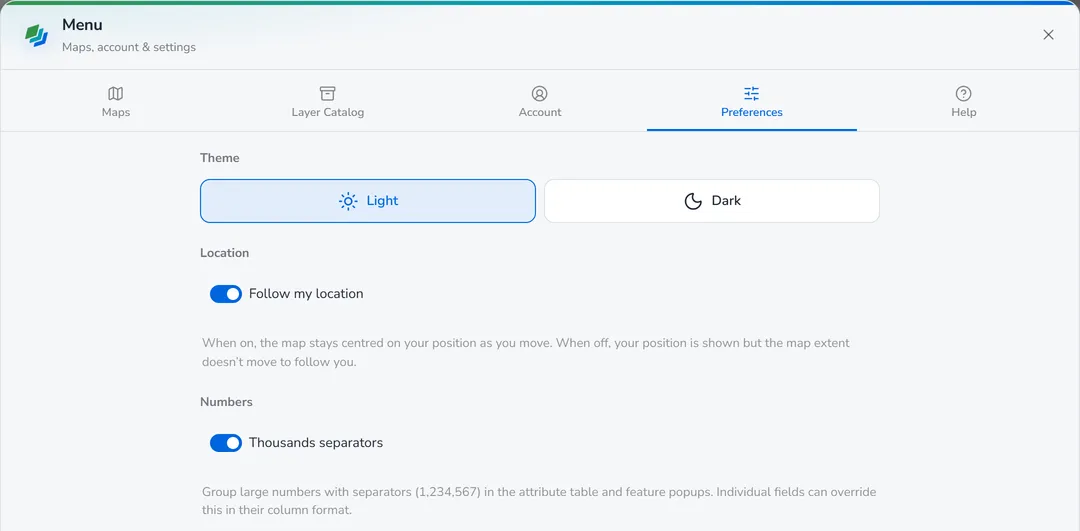
- Theme — Light or Dark (the Theme button in the nav flips it too).
- Location — Follow my location keeps the map centred on your position as you move.
- Numbers — Thousands separators group large numbers (1,234,567) in the table and popups; individual fields can override this.
- Show on map — toggle each part of the workspace: Add files, Help / about, the Panel tabs, SQL console, Chart Studio, Attribute table, Filters, Print / Save PDF, Theme toggle, Zoom in / out, the Compass (shown when the map is rotated or tilted), My location, Home, Fullscreen and the Coordinate display. Reset restores the defaults.
- Map tools bar — the bar along the bottom of the map. Turn the whole bar off with Show the tools bar, or hide just the tools you don’t use — Pan, Add, Edit, Select and Measure each have their own toggle.
- Panel tabs — choose which nav tabs appear: Layers, Basemap, Legend, Bookmarks and Analysis.
- Reset all preferences — at the bottom of the tab, restores everything here to its defaults (two clicks to confirm). Your maps, layers and data are untouched.
Bookmarks & the Home view
The Bookmarks tab in the nav keeps saved views of the map.
- Add bookmark saves the current extent and basemap under a name. Tick Save visible layers to remember which layers are showing too — opening the bookmark then shows just those layers and switches the rest off. Leave it unticked and layers are left as they are.
- Click a bookmark to go to it. Each one shows a thumbnail and tags for its basemap and saved layers.
- Hover a bookmark to update it to the current view, rename it or delete it. Select lets you remove several at once.
- Bookmarks travel with the map: they sync with it, and the owner’s bookmarks appear in a shared map’s viewer. You can restrict a viewer’s search to bookmarks only.
The first entry is always Home — the map’s starting view, which is also what the Home button on the map goes to. Until you set one, Home simply fits every layer. To set it, frame the map and use Map settings ▸ Details ▸ Home view ▸ Use current view (the edit button on the Home bookmark takes you there).
Address search
The search button at the top-left of the map finds an address or place and zooms to it, dropping a temporary marker (hide it with the pin button). Your bookmarks are matched too and listed first.
Print / Save as PDF
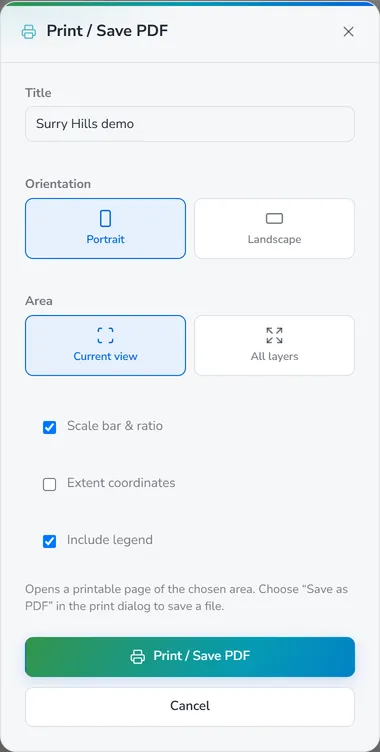
Print in the nav produces a printable page of the map. Set a Title, Orientation (portrait/landscape) and Area (current view or all layers), and optionally include a scale bar & ratio, extent coordinates and the legend. Choose Save as PDF in your browser’s print dialog to get a file.
Coordinates
The coordinate readout (bottom-left) shows the pointer’s position; click it to cycle formats — decimal degrees, degrees-minutes-seconds or degrees-decimal-minutes. Right-click the map to copy a coordinate.
Help & installing the app
The Help tab links to this user guide and can Replay welcome & about. Where supported, Install app adds DropMaps to your device as a PWA — on desktop via the browser’s install prompt, on iOS via Share → Add to Home Screen — so it opens in its own window and works offline for the local editor.
Next steps
- The interface — what each control is.
- Maps & cloud sync — the Maps tab and Map settings.