Tools › Count points in polygons
Count points in each area — free
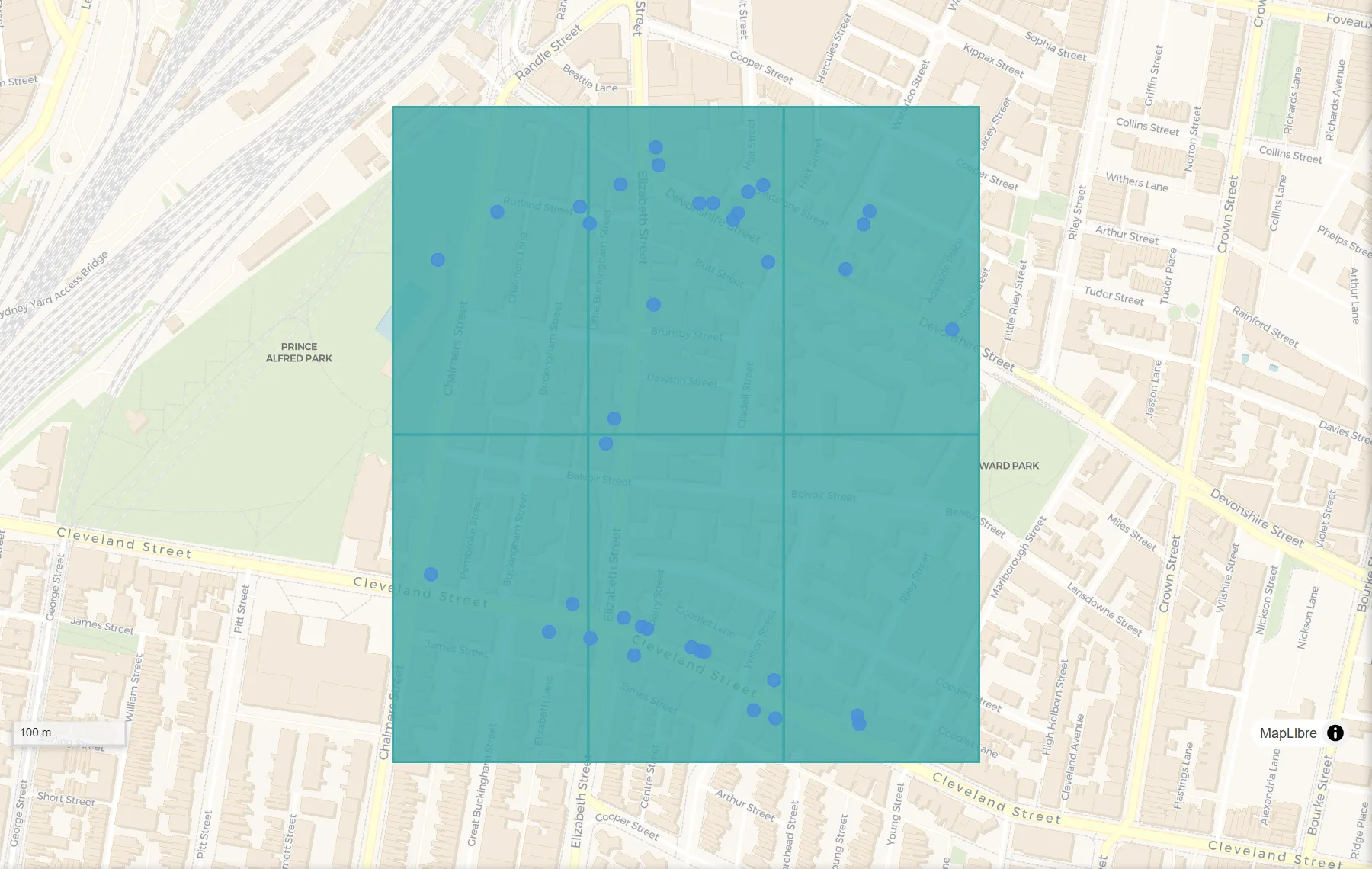
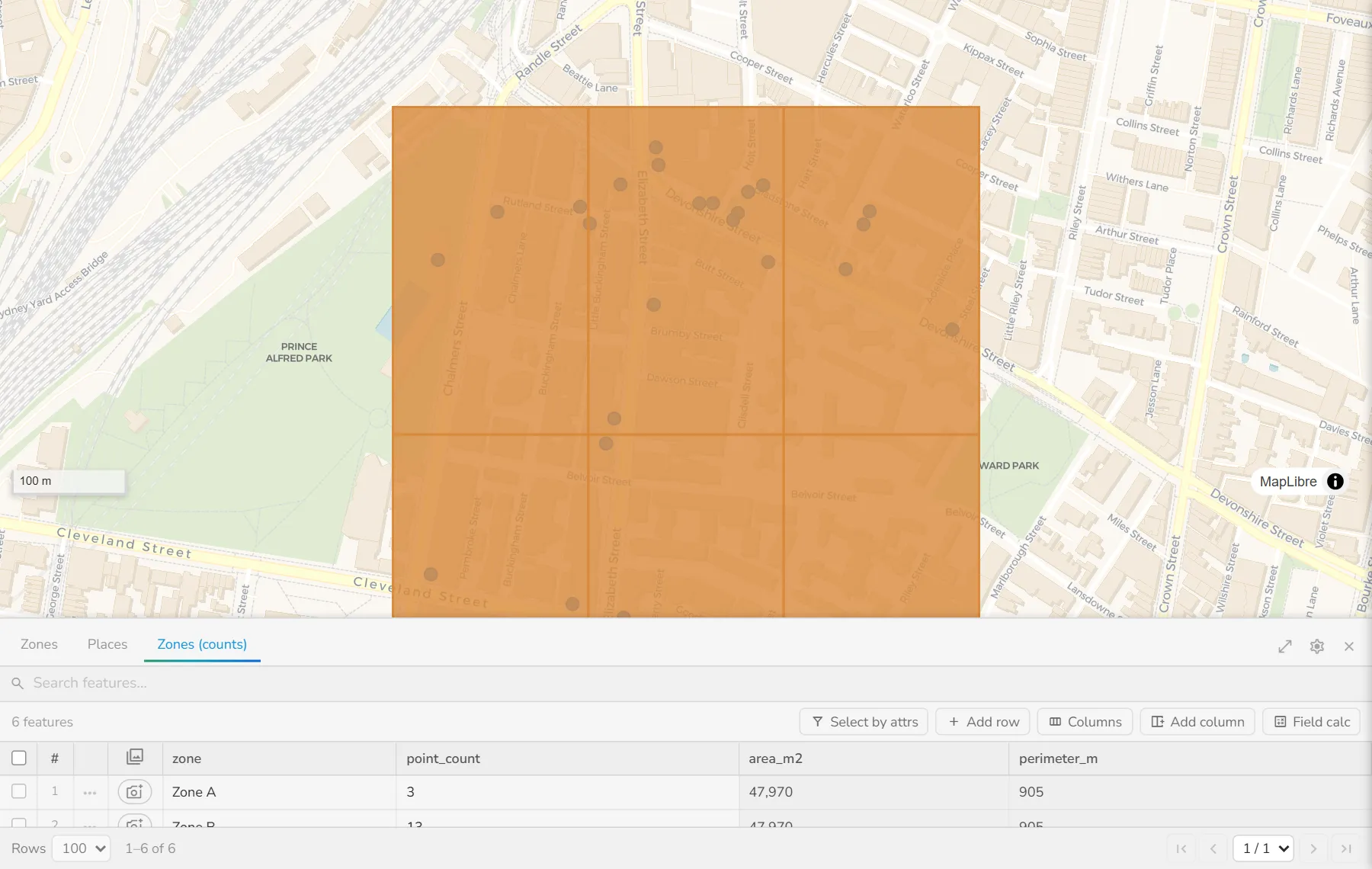
How many customers are in each region, or how many trees are in each park? Drop your areas in box 1 and your points in box 2. DropMaps adds a column to each area with how many points fall inside it.
The areas
Drop a map file here, or
The points to count
Drop a map file here, or
Both layers in one file? Just fill box 1 — you can pick the second layer in DropMaps.
By opening your file you agree to the DropMaps Terms of Service and Privacy Policy.
✓ Opened in a new tab
Your files stay on your computer — they open in your browser, not on our servers.
Free · No signup · Nothing to install
What it does
How to do it
- Any map file works: a zipped shapefile, KML or KMZ, GeoJSON, GeoPackage, GPX, a CSV with coordinates or a zipped .gdb.
- Drop the areas into box 1 and the points to count into box 2. You can also drop both at once, then use “Swap” if they landed the wrong way round.
- Click “Set up Count”. DropMaps opens in a new tab with your data on the map and the Count points in polygons tool open, your layers already picked.
- Leave the spatial relationship as it is, and change the name of the new count column if you like. Then click Run.
- The result appears on the map as a new layer. Click “Save result…” to download it as a shapefile, KML, GeoJSON, GeoPackage or CSV.
Questions
Can my points be in a spreadsheet?
Yes. Save it as a CSV with latitude and longitude columns and drop it in box 2.
Can I colour the areas by the count?
Yes. Once the result is on the map, open its style settings and colour it by the new count column.
What if both layers are in one file?
Drop the file into box 1 only. Once DropMaps opens, pick the second layer from the list in the tool.
How do I get the result?
The result appears on the map as a new layer. Click “Save result…” under the Run button and choose a shapefile, KML, GeoJSON, GeoPackage or CSV.
Is my data uploaded anywhere?
No. The tool runs inside your browser, on your own computer. Nothing is sent to us unless you choose to save the map to a DropMaps account.
Other free tools
Viewers
Converters
Map functions
See what else DropMaps can do
It’s a full map maker in your browser — colour and label your data, draw and edit shapes, measure, stack files on top of each other, and share a map with a link anyone can open.
Explore the features